You've drawn thirty pier footings. Each one needs the same assembly — concrete, rebar, forms, labor. Applying it thirty times is exactly the kind of clicking this feature deletes.
How it works
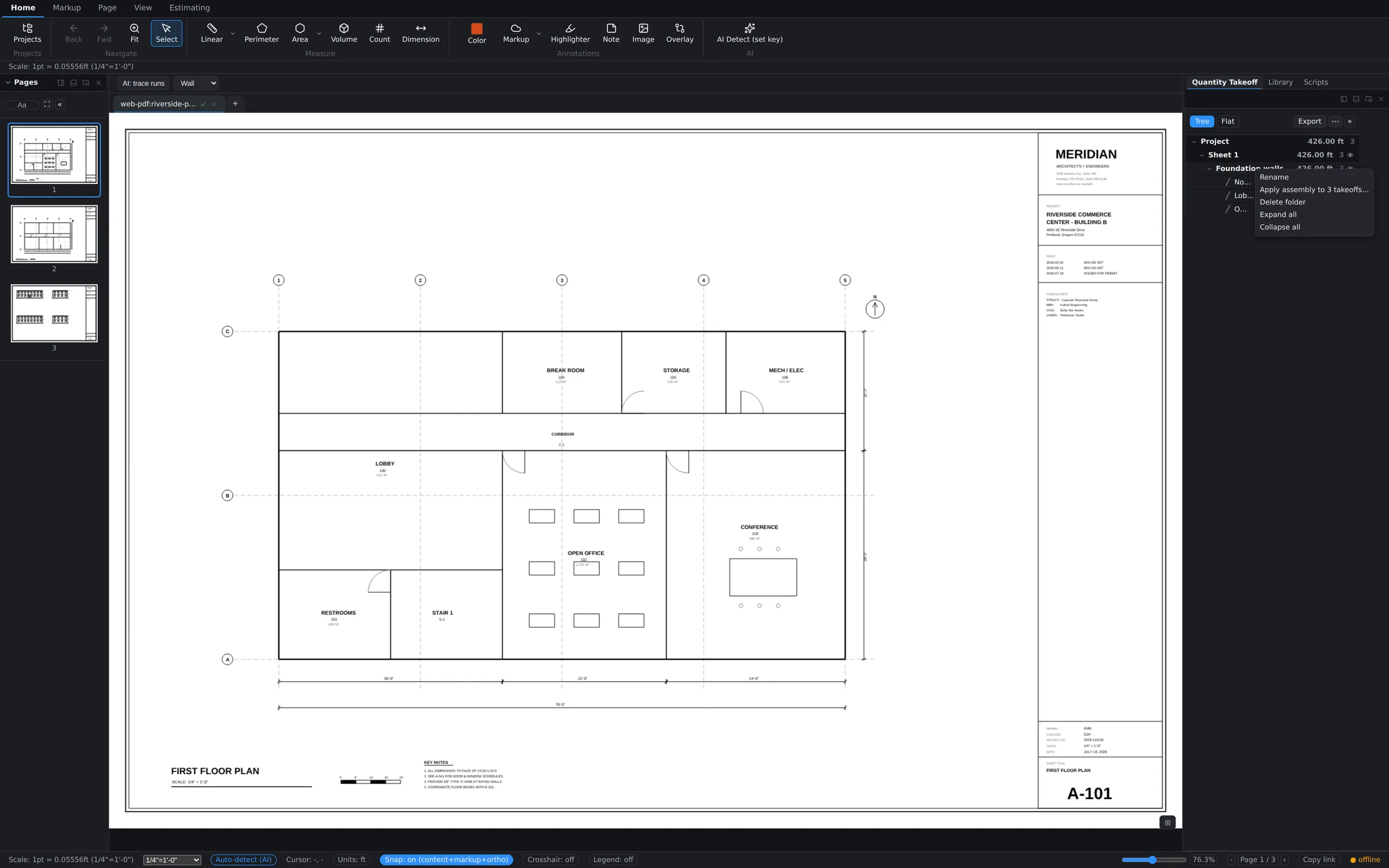
- Organize into a folder. In the Quantity Takeoff tree, right-click a sheet and choose New folder, then move your takeoffs into it (right-click a takeoff → Move to…, or drag it in).
- Right-click the folder and choose Apply assembly to N takeoffs… — the count shown is live, and it counts only your original measurements.
- Pick the assembly and review. The picker previews the parts expansion against the first takeoff in the folder; every takeoff expands from its own measurements when you apply.
- Apply. Every takeoff in the folder gets its part children, priced from its own quantity.
The safety rails
- One undo reverts everything. The whole folder application is a single undo step — Ctrl+Z puts all thirty back the way they were.
- Generated parts never re-expand. Assembly part children in the folder are automatically excluded, so applying twice can't double-count materials.
- Re-applying refreshes. Applying the same assembly to the same takeoff again replaces its parts instead of duplicating them.
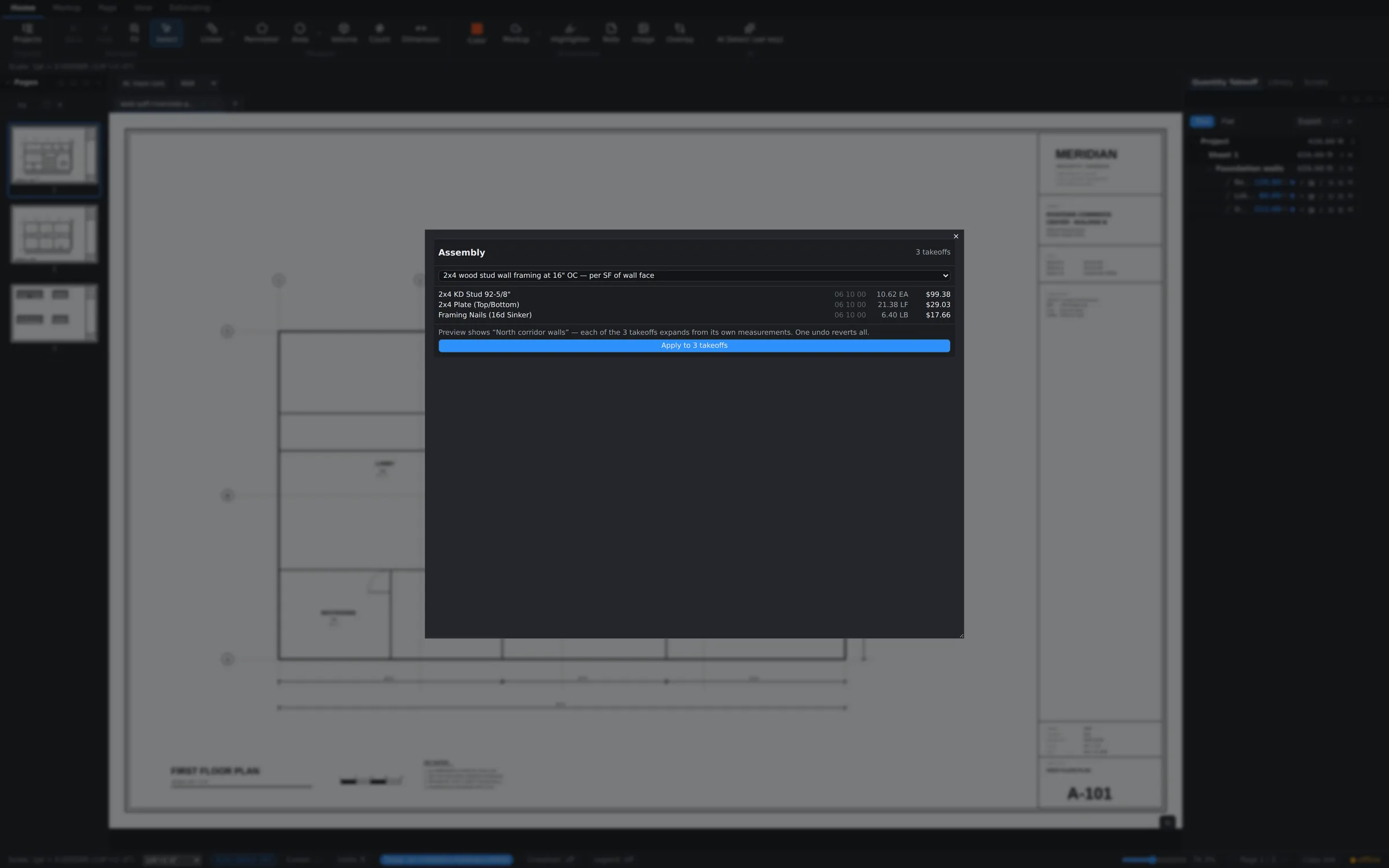
Folder-level apply uses the exact same money-safe expansion as the per-takeoff picker — the folder is just the multiplier.